Video is the key to content these days; if you’re a marketer, content creator, or educator, nothing can be done without the help of a video. Most of the time, we see and engage with the latest content that is related to video content. AI made video creation a lot easier because creating a high-quality video with all the perfect editing isn’t an easy thing. AI video creation has now made that difficult part of the work take seconds, and for that, Pictory AI is one of the most famous AI tools. Here you will see the Pictory AI tutorial to learn how you can create your own video and engage with a big audience easily.
What is Pictory AI?
Pictory AI is a video creation tool specially designed for educators, marketers and social media creators. It creates the professional-level video effortlessly. Here you can do a lot of activities to create a perfect video for yourself, like creating a video through texts, adding subtitles in the video, and doing a voiceover. This AI video creation platform gives you a lot of options to do different activities, and the Pictory AI tutorial step-by-step is going to help you understand the use of this AI.
Who’s It Pictory AI for?
Pictory is good for someone looking for the best video creations. People who are YouTubers, social media creators, and educators can take the best benefit out of it.
Features of Pictory AI
- Custom Styles: Apply different colours, fonts, and styles instantly, and you can change them anytime.
- Image to Video: This AI video creation converts your still pictures into a full video with different movements.
- Background changer: Here, users can swap the scenes present in the background and can also move the unwanted elements from the picture or videos.
- Text to Video: Generate the video with the help of plain texts or blog content.
Explore the section of Pictory AI:
Creatives can explore:-
- Realistic AI Images: Ideal choices for professionals and for business ads. This option will be more affordable while still delivering high-quality results.
- Pixel Art & Anime: Perfect choice for animation or short videos, such as YouTube Shorts.
- Stickers & Banners: Great for creating your own brand, advertising, and social media growth.
Step-by-Step Pictory AI Tutorial
Step 1: Sign up or Login
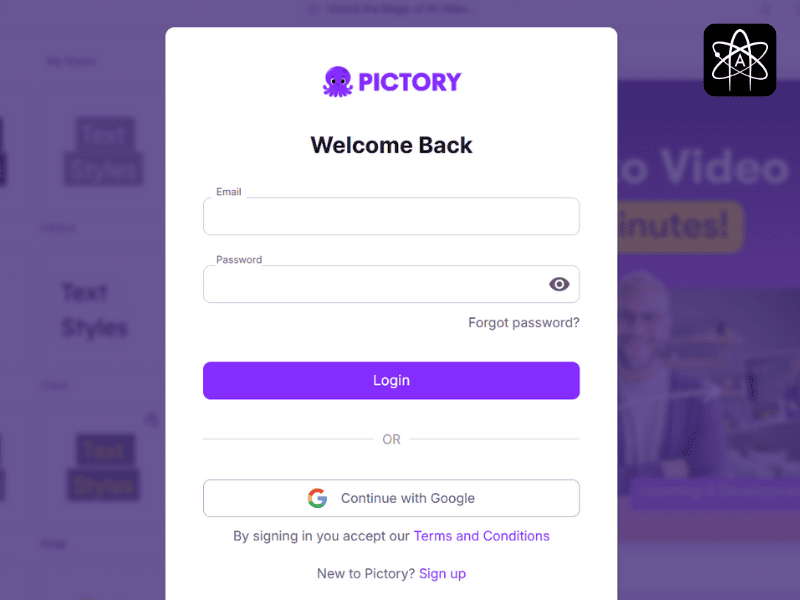
The first step is the basic one: visit the AI video editing tool and create your account if you are new there or log in if you already created an account. You can create the account for free there, and in the dashboard, you will see the different options like article to video, visuals to video, and script to video, and you can edit the video with the help of a team.
Step 2: Select Script to Video (Example)
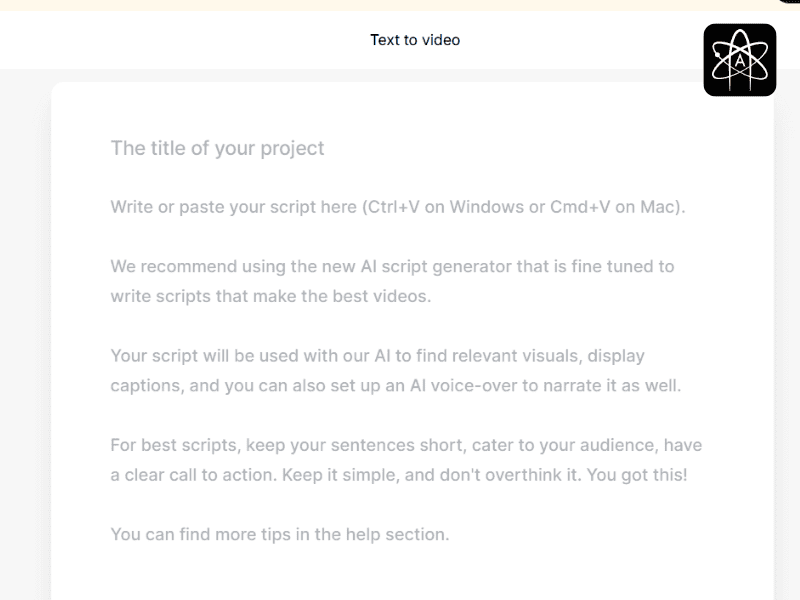
Now, for example, you select the script-to-video option, so the AI video editing tool will ask you to paste the script of your video or upload the document. Make sure that your text is clear and written exactly in the way in which you want your video to be made. AI will analyse your text and will create the visuals accordingly.
Step 3: Select the video template
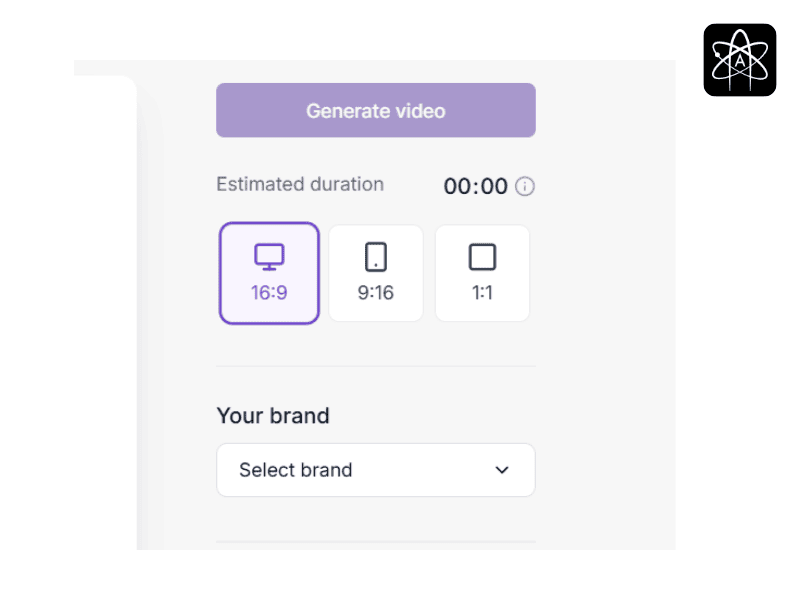
Pictory AI offers a variety of templates to select from for your video, similar to YouTube, for marketing or for some creativity. Here we can tell the three most common formats in the Pictory AI Tutorial, the one with 16:9 size, the landscape one, the 1:1 is the square one, and the 9:16 is the vertical one. Choose the template according to your video style and the audience.
Step 4: AI will create your video
Now here comes the important part; now this AI video editing tool will start doing the magic. The AI will break your script into multiple scenes according to your description, and it will also apply the motion effects, subtitles, and the tarstios if needed. This whole AI video creation process will take just a few seconds, and you will be ready with your video, which you can also customise.
Step 5: Customise your video:
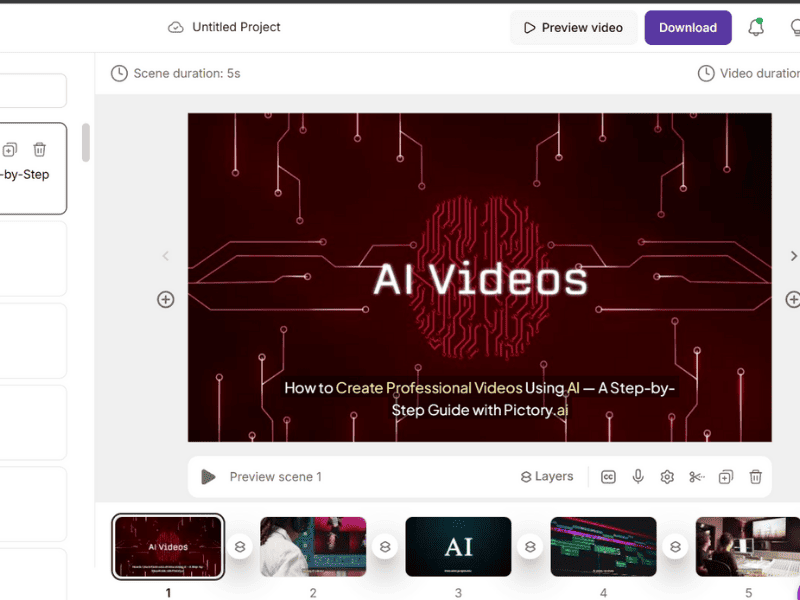
Here comes the important part of the Pictory AI tutorial, which gives you video creation. Here are things that you can edit if you want to:-
- Text: You can just see the acceptance appearing on the screen and the style of fonts.
- Branding: Add the logo or brand colours.
- Visuals: You can replace any image or clip with any other you think should be there.
- Music: There are different background tracks available, and you can also adjust the volume of the voiceover.
Step 6: Download your video
Here comes the last step of the Pictory AI tutorial. First, preview your caretion tos see if any changes you made are fitting well and the video is exactly how you want it. After checking all the things, click on the generate video option. You can download the video up to 1080p, and after downloading, you can share it wherever you want.
Available AI models in Pictory AI:
- FLUX.1: Quick Mockups and Drafts.
- Seedream 4: It creates lifelike images and videos that look very attractive and can be used anywhere.
- Qwen Image: Anime video creation.
Pricing Breakdown of Pictory AI
| Plan | Monthly | Yearly | Key Features |
| Free | $0 | $0 | Moderate usage limited but Full tools. |
| Pro | $29 | $299 | Limited exports with a watermark. |
| Premium | $59 | $599 | Moderate usage limited, but Full tools. |
Final thoughts:
The options in the best AI tools for video creation are not limited, but here we are talking about the Pictory AI tutorial because there are a lot of features in it which make it different from others. Pictory AI is very easy to use and does the work in just a few seconds, and the premium version is also very affordable, according to its amazing features. You just need to follow the above steps, and you will end up getting a perfect video like it’s made by a professional video editor, and you can do this as many times as you want effortlessly.